AiBow Grid / User guide
日本語版 →AiBow Grid User Guide
Version 1.0 / Last updated: October 3, 2026
AiBow Grid draws guide lines from the edges of a layer (an image, shape, text or precomp) out to the edges of the composition. Use it for Swiss-style layouts and blueprint-like motion graphics.
Getting started
- Select the layer you want lines around (an image, solid, shape, text or precomp)
- Choose Effect → AiBow Tools → AiBow Grid
- With the defaults, thin 1 px gray lines frame the artwork and pass behind the layer
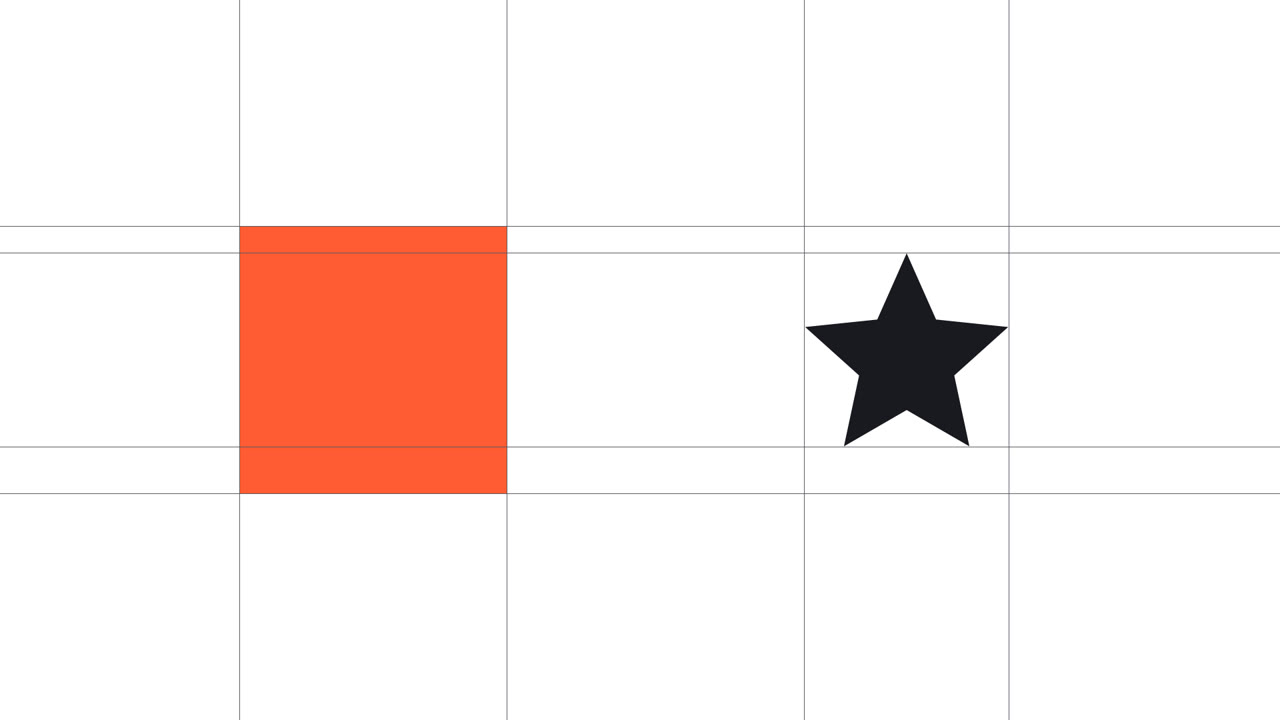
Apply it to several layers and their lines overlap into a grid layout. On a dark background use a light Color; on white, a darker one.
Measuring the edges (Bounds)
Content (Alpha)- Lines follow the visible artwork, ignoring transparent areas (default)
Layer Bounds- Lines follow the layer’s bounding box
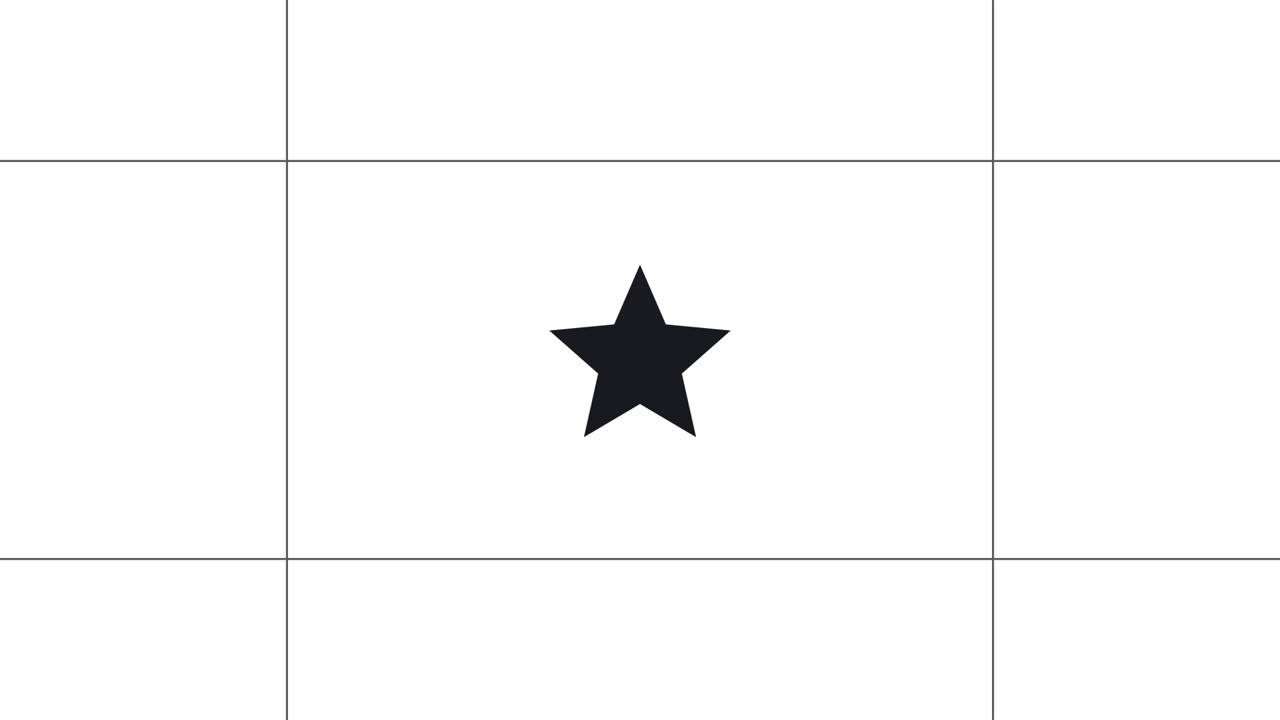
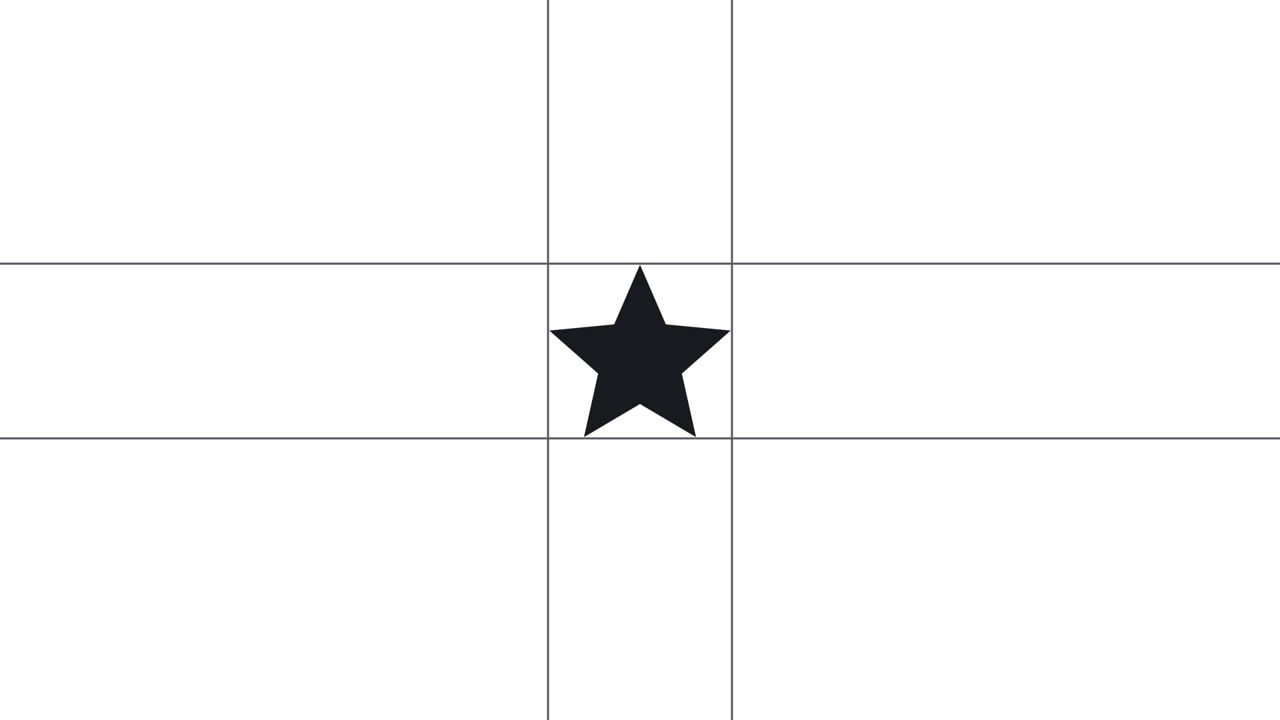
Precomps and images with transparent padding are larger than they look. Leave Bounds on Content and the lines hug the artwork itself.
Number and length of lines
Padding- Moves the outer lines away from the artwork (negative moves them inward). Default 0 px
Vertical Lines / Horizontal Lines- Draw vertical / horizontal lines. Both on by default
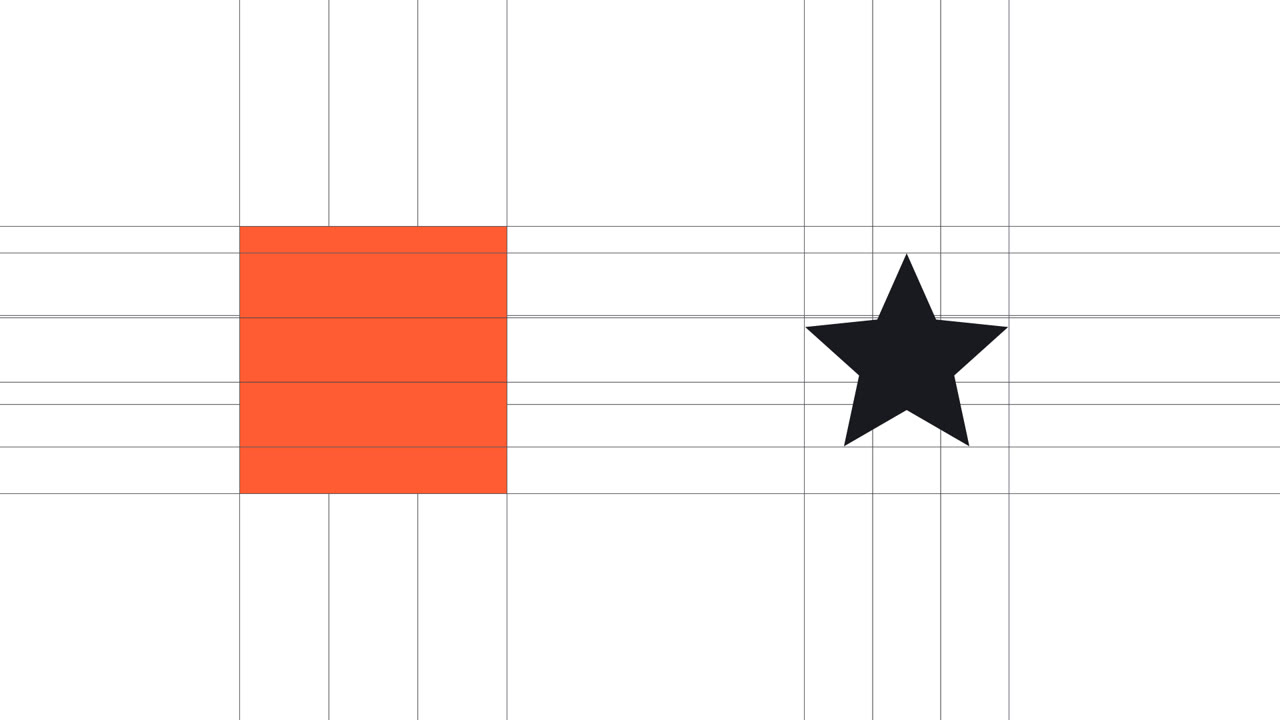
Columns- Number of vertical divisions (1 = outline only, up to 100). Default 1
Rows- Number of horizontal divisions. Default 1
Extend- To Comp Edge, or Fixed Length (by Length)
Length- With Fixed Length, how far the lines extend from the artwork. Default 200 px
Color, width and compositing
Color- Line color. Default gray (190, 190, 190)
Line Width- Line width. Default 1 px
Opacity- Line opacity. Default 100%
Keep Width When Scaled- When on, line width stays the same as the layer scales. Default on
Composite- Behind Layer (default) / In Front of Layer / Grid Only (lines only)
All px values are in comp pixels. Scaling the layer does not change their size on screen.
Following scale and rotation
The lines follow the layer’s position, scale, rotation and parenting. When the layer is animated, they are redrawn every frame for its current shape.
- Width: with Keep Width When Scaled on, a 1 px line stays 1 px at 200% or 50%
- Rotation: the lines tilt with the layer and still reach the comp edges
- Shapes and text: edges are measured from each frame’s shape, so retyping text or animating a path keeps the lines attached
Draw-on animation
Draw On- How much of each line is drawn. Default 100%. Keyframe it
Draw From- Center (out from the artwork) / Ends (in from the comp edges) / Start (Sweep) (one direction)
Stagger- Delay between lines. 0% = all together, 100% = one at a time. Default 30%
Order- Vertical First / Horizontal First / Alternate
Ease Out- Lines slow down as they finish. Default on
- At 0 seconds, set Draw On to 0% and click the stopwatch
- 1–2 seconds later, set Draw On to 100%
- Choose how lines grow with Draw From, and the sequence with Stagger and Order
Corner marks
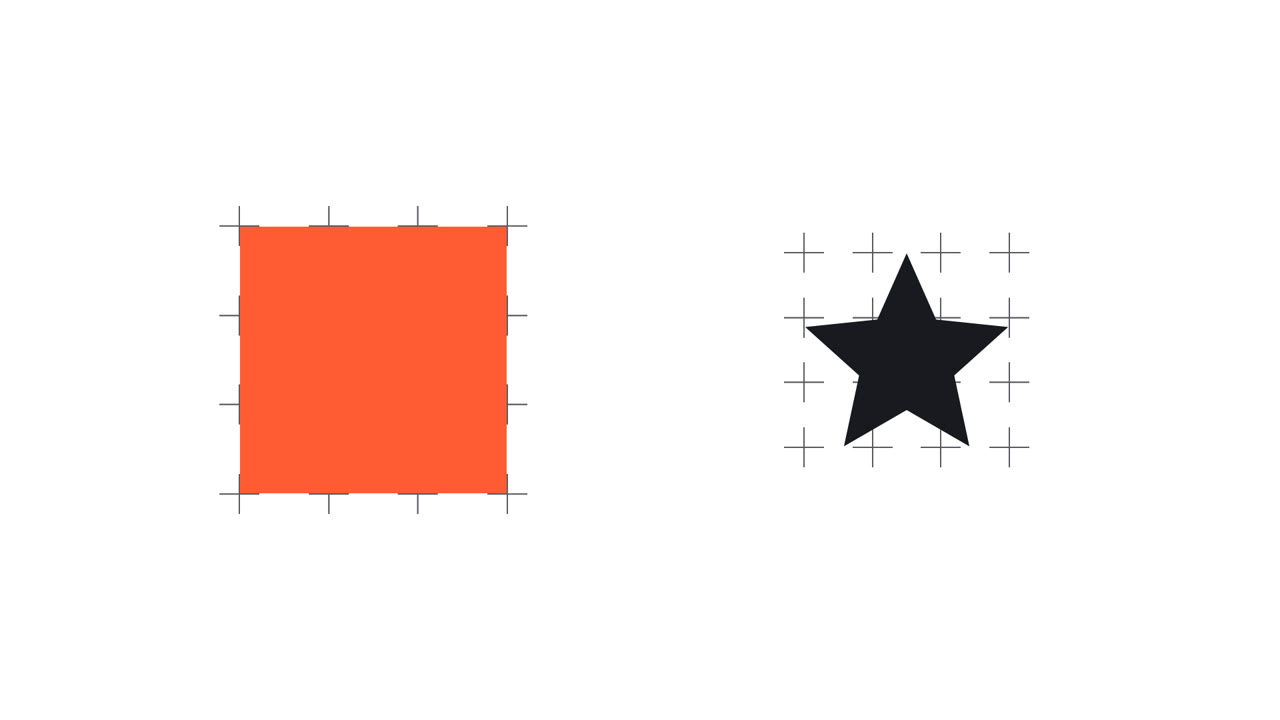
Instead of full lines, you can show cross marks only where lines intersect. Set Style → Type to Corner Marks and set the arm length with Mark Size (default 30 px). More Columns / Rows add marks at the division points too. Animate Draw On and the marks grow out from each intersection.
Troubleshooting
| Problem | What to do |
|---|---|
| Lines don’t cross the artwork | With the default Composite (Behind Layer) the lines pass behind it. Use In Front of Layer |
| Lines cross other layers | Lines are drawn as part of the layer that has the effect. To keep them at the very back, duplicate the layer, set the copy’s Composite to Grid Only and move it to the bottom |
| Lines follow a box bigger than the art | Bounds is set to Layer Bounds. Switch it to Content (Alpha) |
| Lines stop short of the comp edge | Lines extend at most 12000 px from the layer in each direction. This happens when the layer is scaled down extremely |
Depth and perspective are not taken into account on 3D layers. Use it on 2D layers.
Requirements and installation
- Windows 10 / 11 (64-bit). Tested with After Effects 2026. Not available for Mac yet
- Quit After Effects
- Copy
AiBowGrid.aextoC:\Program Files\Adobe\Common\Plug-ins\7.0\MediaCore(click Continue if Windows asks for administrator permission) - Start After Effects. The effect is under Effect → AiBow Tools → AiBow Grid
Questions? Use the “販売者に質問する” (Ask the seller) form on the product page.