AiBow Genkou / User guide
日本語版 →AiBow Genkou User Guide
Version 1.0 / Last updated: October 3, 2026
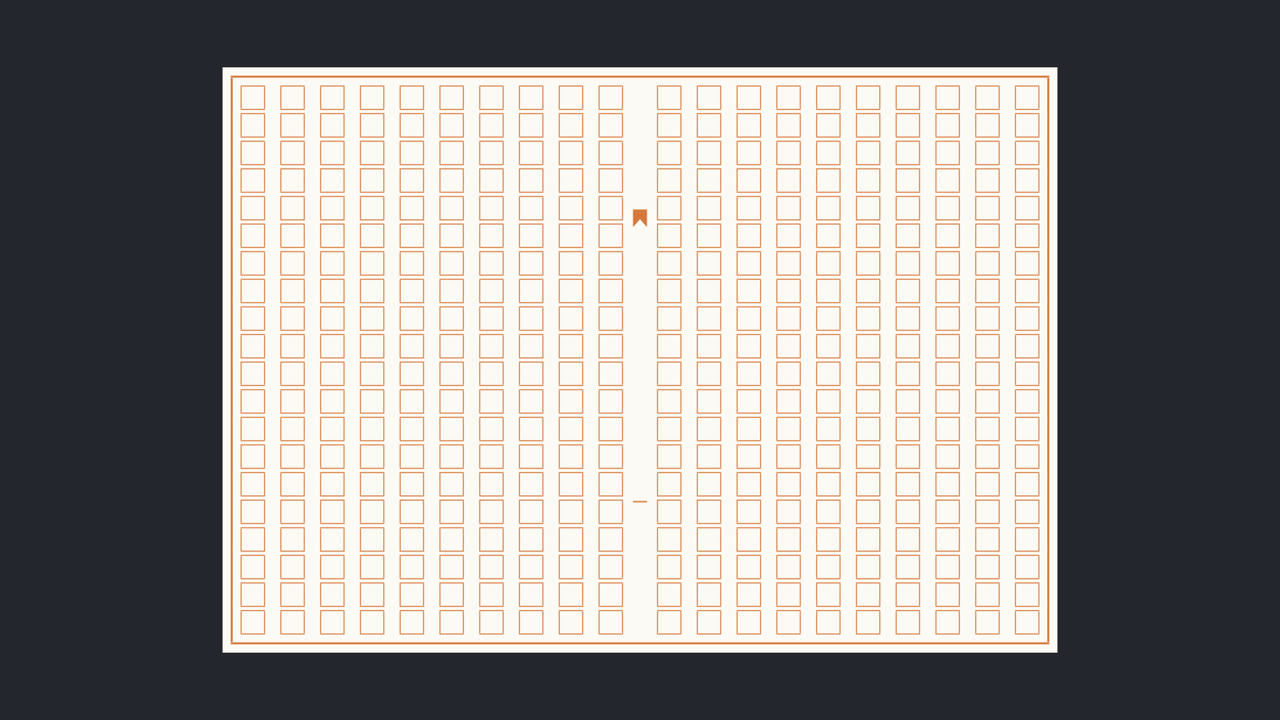
AiBow Genkou draws Japanese manuscript paper (genko yoshi), vertical or horizontal, on an After Effects layer. Apply it to a solid to get a 20 × 20 vertical sheet, then adjust the lines, cells, spacing, rules and paper color. Pick a text layer and press a button to set your text one character per cell.
Getting started
- Choose Layer → New → Solid and make a solid the size of the comp (any color)
- With the solid selected, choose Effect → AiBow Tools → AiBow Genkou
- With the defaults you get a vertical sheet of 20 lines × 20 cells
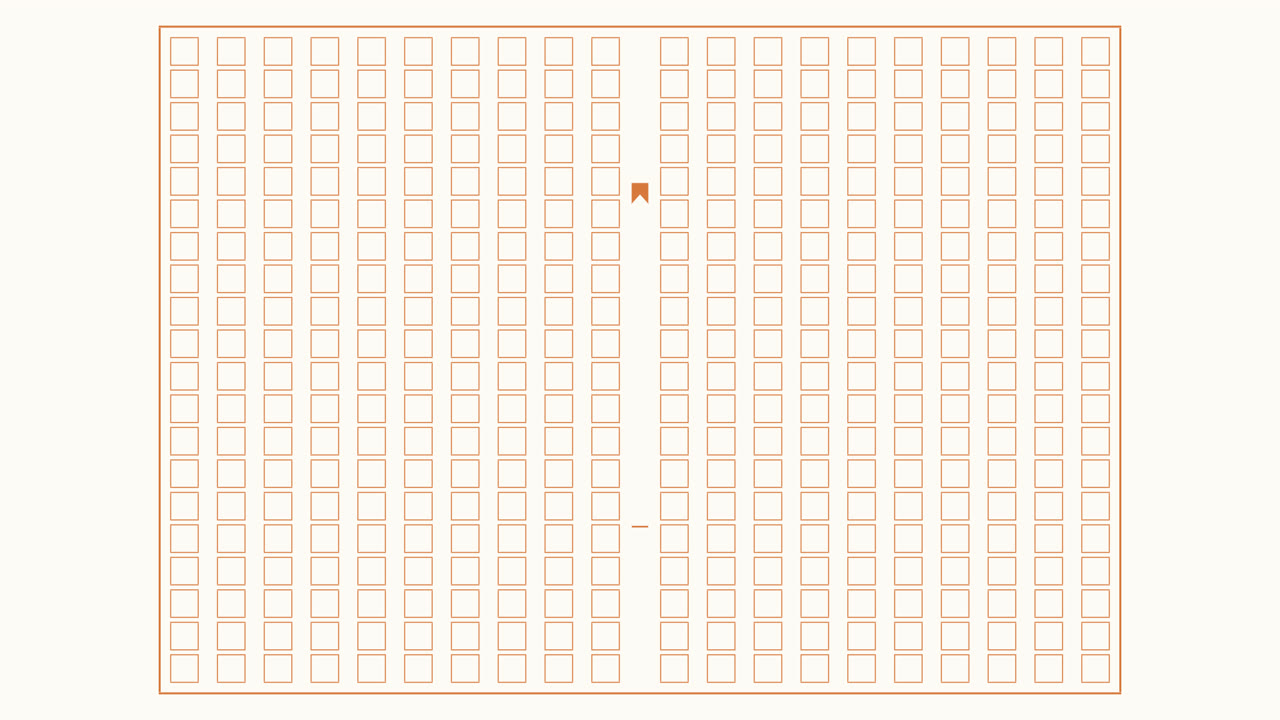
The sheet is drawn inside the layer the effect is applied to. To place a smaller sheet on its own, see Paper.
Layout
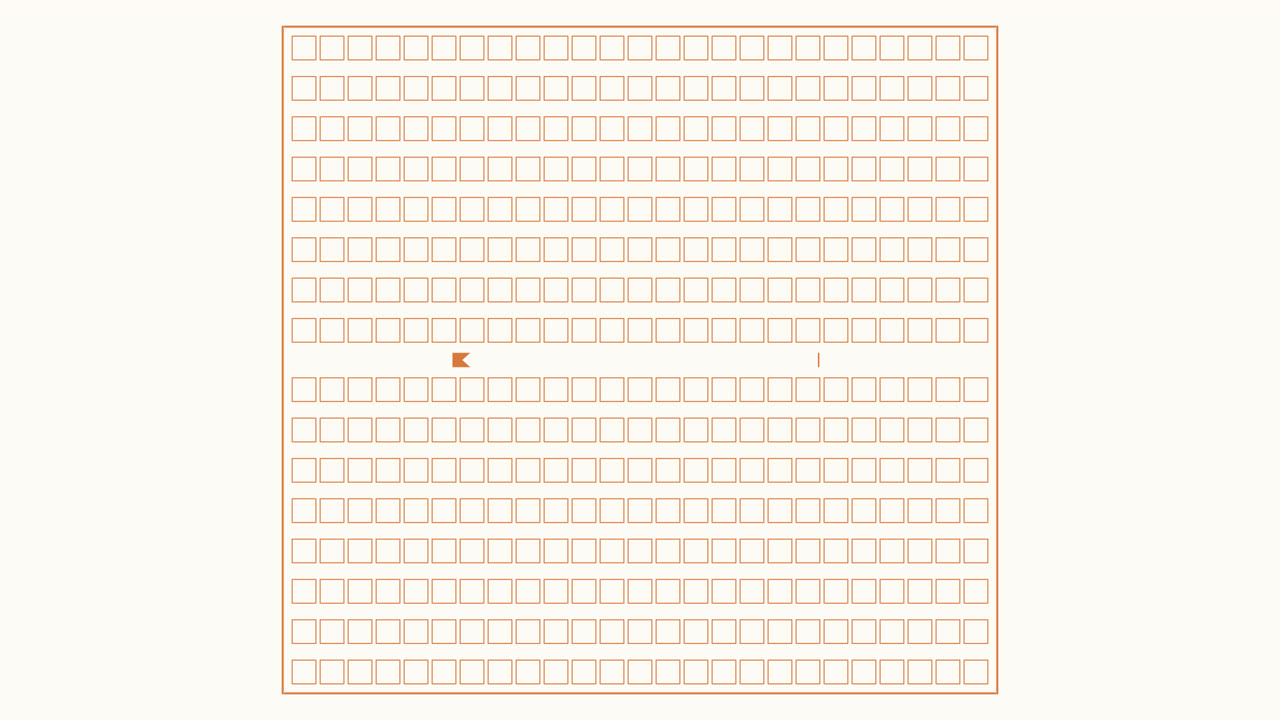
Writing- Vertical (Tategaki) or Horizontal (Yokogaki). Default: vertical
Lines- Number of lines (1–200). Default 20
Cells per Line- Characters per line (1–200). Default 20
Fit to Layer- When on, the sheet is sized to fit the layer. Default on
Fit Margin- Margin around the sheet when fitting. Default 40 px
Cell Size- Cell size when Fit to Layer is off. Default 40 px
Scale- Overall scale. Default 100%
Center- Center of the sheet. Click the crosshair button, then click in the viewer to move it there
Spacing and gutter
Spacing is a percentage of one cell (one cell = 100%), so the proportions hold when you scale the whole sheet.
Line Gap- Space between lines (the ruby column). Default 70%
Cell Gap- Space between cells in a line. Default 18%. At 0% neighboring cells share their borders, the classic look
Center Gutter- The center gutter. Appears only with an even number of lines. Default on
Gutter Width- Gutter width. Default 150%
Frame Margin- Distance between the frame and the cells. Default 40%
Lines Style
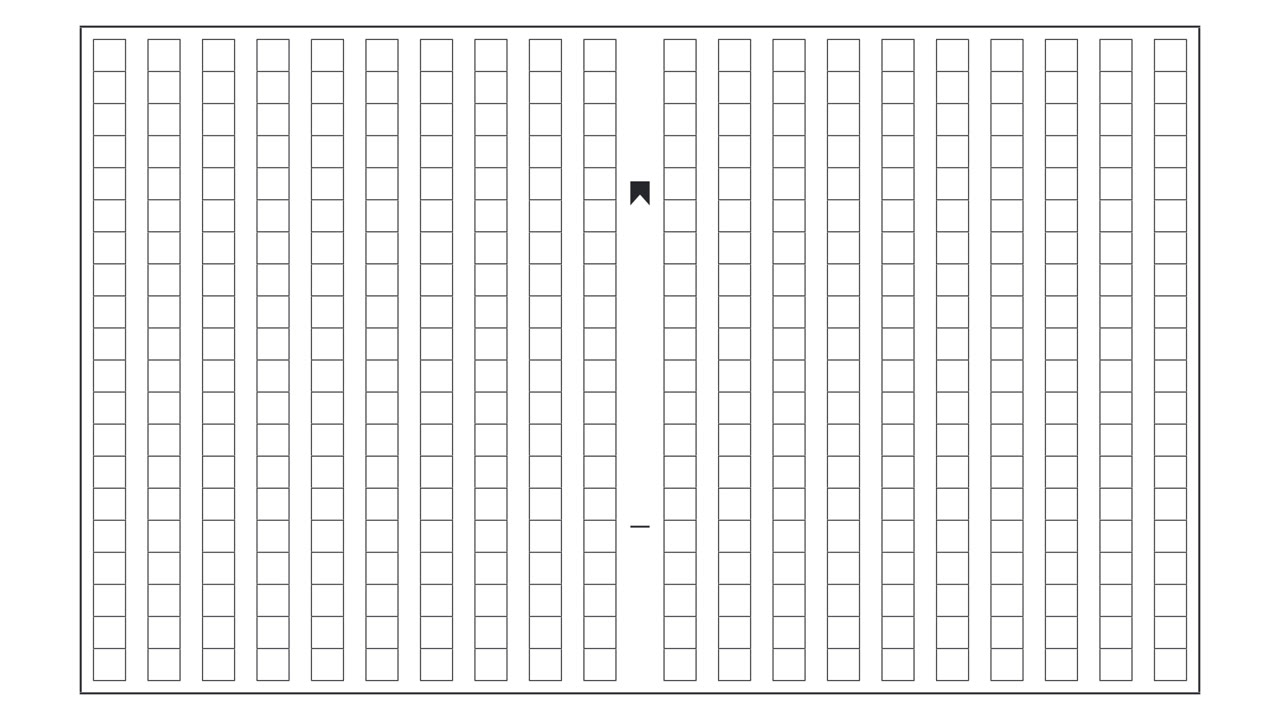
Line Color- Rule color. Default brown (214, 120, 60)
Line Opacity- Opacity of the rules and marks. Default 100%
Show Cells- Show the cells. Default on
Cell Line Width- Cell line width. Default 1.5 px
Show Frame- Show the outer frame. Default on
Frame Width- Frame line width. Default 3 px
Double Frame- Double outer frame. Default off
Double Frame Gap- Gap between the two frame lines. Default 4 px
Gutter Marks
The fishtail mark (gyobi) in the center gutter and the bar below it. Matching them to the rule color usually looks best.
Show Marks- Show the fishtail and the bar. Default on
Mark Color- Mark color. Default brown (214, 120, 60)
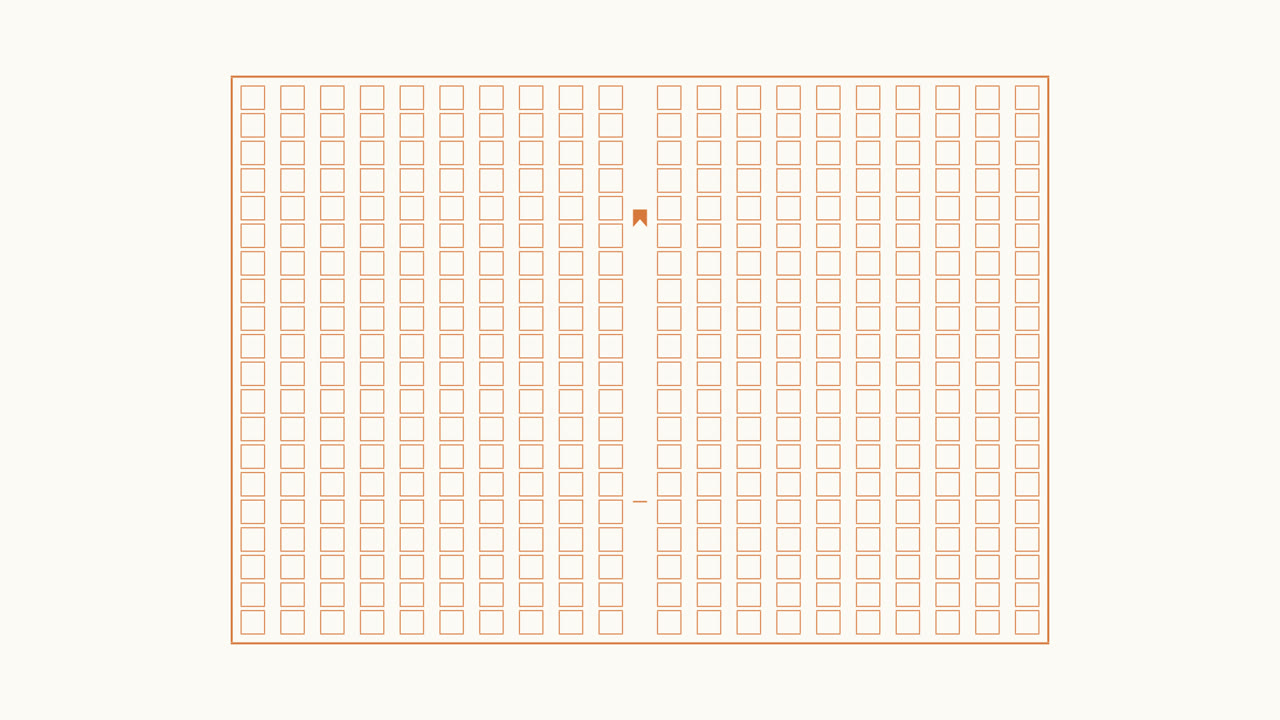
Fishtail Position- Fishtail position, as a percentage from the top of the frame. Default 25%
Bar Position- Bar position, as a percentage from the top of the frame. Default 75%
Mark Size- Mark size. Default 100%
Paper
Paper Fill- None / Whole Layer / Sheet Only (around the frame only). Default Whole Layer
Paper Color- Paper color. Default off-white (252, 250, 244)
Paper Opacity- Paper opacity. Default 100%
Composite- Over Layer / Under Layer / Replace Layer. Default Over Layer
| Paper Fill | Result |
|---|---|
| None | Rules only. Use it to lay rules over footage |
| Whole Layer | The whole layer becomes paper (default) |
| Sheet Only | Paper only around the frame. With Composite set to Replace Layer, the outside becomes transparent and the sheet looks like a single piece of paper |
Text: putting text into the cells
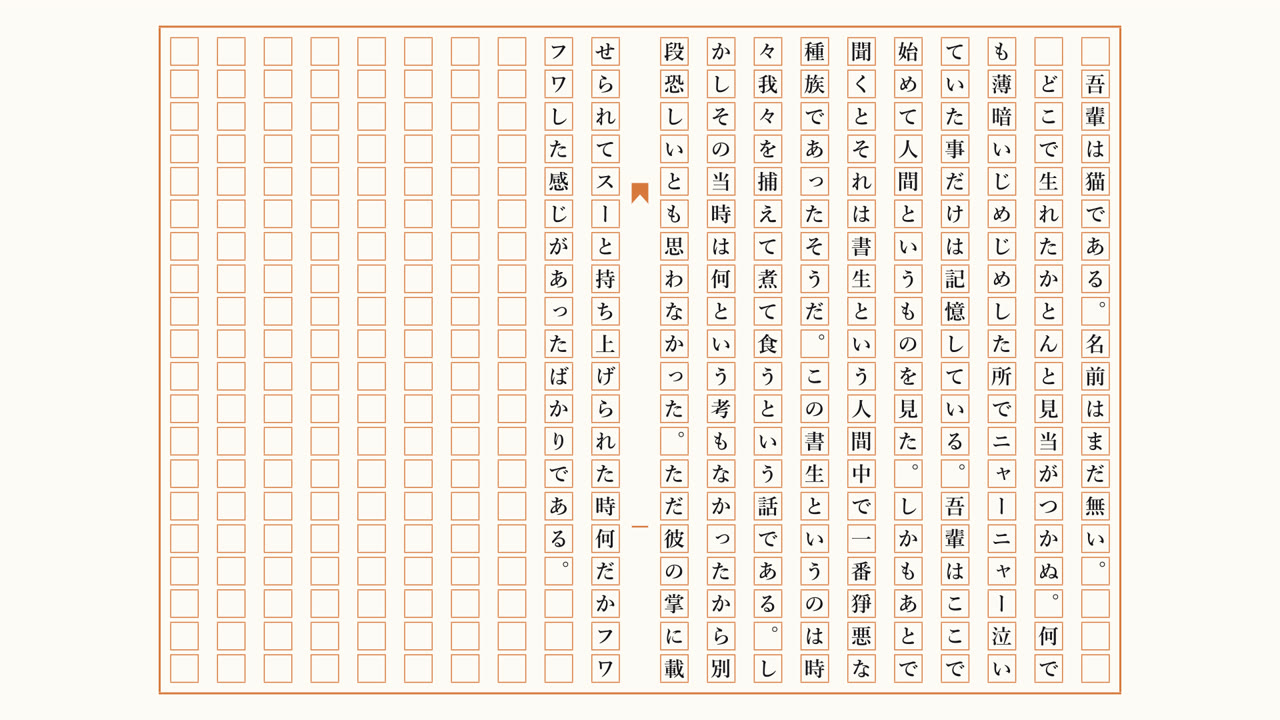
Point the effect at a text layer and press Generate. You get one text layer per line, with one character per cell.
- Create a text layer with your text (you can turn its eye off). Its font and color are used
- On the manuscript layer, choose that layer in Text → Text Source
- Press
Generate. Layers named “Genkou Line 01, 02 …” appear just above the sheet - After changing the text or settings, press
Generateagain. The previous layers are replaced - Press
Removeto delete all generated text
Text Source- The text layer with your text
Text Size- Character size, relative to a cell. Default 75%
Full-Width ASCII- Converts half-width letters, digits and spaces to full-width so they fit the cells. Default on
Kinsoku (Hang Punctuation)- Punctuation or a closing bracket that would start a line hangs below the previous line instead. Default on
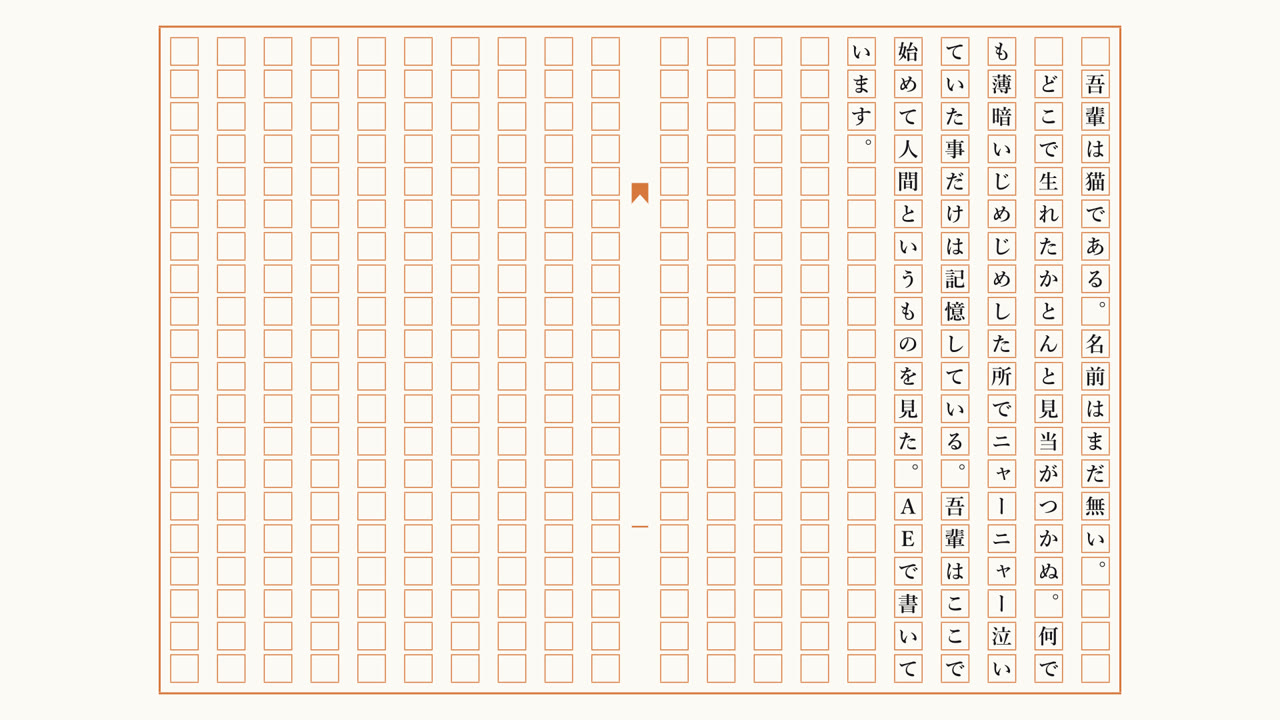
- Vertical sheets fill from the right-hand line; horizontal sheets from the top line
- Line breaks in the source text start a new line. Indent a paragraph with a full-width space in the source text
- Text longer than one page (lines × cells) is cut off
- Hanging applies to 、 。 and closing brackets (」』) etc.). Small kana such as ゃ っ, the long-vowel mark ー and 々 stay at the start of a line
To change the text, edit the Text Source layer and press Generate again. Edits made directly to the generated layers, and animators added to them, are lost when you regenerate.
The generated layers are parented to the manuscript layer, so they follow when you move or scale it. They are ordinary AE text layers, so text animators and effects work as usual.
Animation: cells in reading order
Reveal- Share of cells shown, in reading order. Default 100%
Reveal Softness- How many cells each fade spans. 0 pops cells on one at a time; higher values flow smoothly. Default 3
- At 0 seconds, set Reveal to 0% and click the stopwatch
- At the time you want it finished (e.g. 2 seconds), set Reveal to 100%
- Play from the start: vertical sheets reveal from the top of the right-hand line, horizontal sheets from the left of the top line
The frame and gutter marks are visible from the start regardless of Reveal. To bring the text in as well, add AE text animators (opacity, for example) to the generated text layers.
Recipes
| Goal | Settings |
|---|---|
| Standard 400-character vertical sheet | Defaults |
| Horizontal sheet | Writing: Horizontal. Adjust Lines / Cells per Line as needed |
| A single sheet over a background | Paper Fill: Sheet Only, Composite: Replace Layer, size with Scale |
| Shared borders (like store-bought paper) | Cell Gap: 0% |
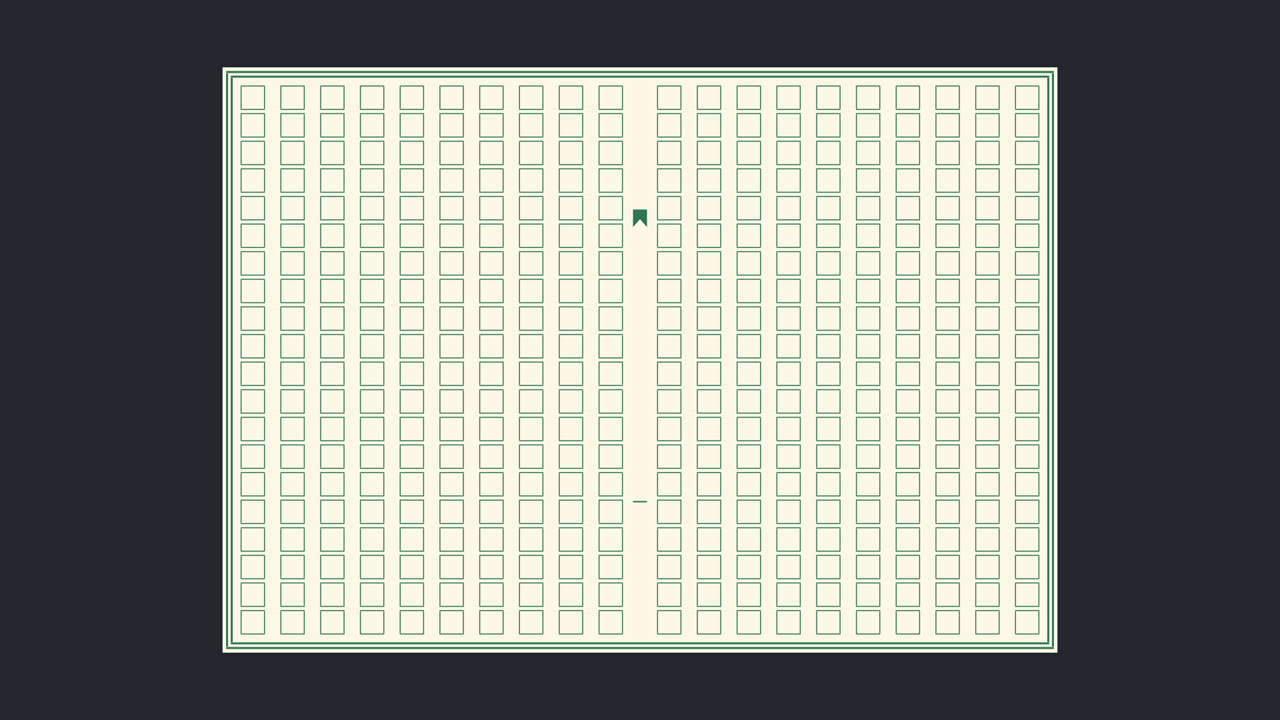
| Green or black rules | Set Line Color and Mark Color to the same color |
| A richer frame | Double Frame: on, Frame Width: 2–3 px |
| Rules only, over footage | Paper Fill: None (apply to an adjustment layer or the footage layer) |
Troubleshooting
| Problem | What to do |
|---|---|
| No center gutter | The gutter appears only when Lines is an even number |
| The sheet is cut off | It is drawn only inside the layer. Apply it to a comp-sized solid, or lower Scale |
| Generate does nothing | Check that a text layer is selected in Text Source |
| Text I edited directly is misaligned | Edit the Text Source layer and press Generate again |
| I want to keep half-width letters | Turn off Full-Width ASCII. Half-width characters are half as wide, so they will not fill the cells |
| I need “No.” or a sheet number | The effect does not draw those. Add a regular text layer |
Requirements and installation
- Windows 10 / 11 (64-bit). Tested with After Effects 2026. Not available for Mac yet
- Quit After Effects
- Copy
AiBowGenkou.aextoC:\Program Files\Adobe\Common\Plug-ins\7.0\MediaCore(click Continue if Windows asks for administrator permission) - Start After Effects. The effect is under Effect → AiBow Tools → AiBow Genkou
Questions? Use the “販売者に質問する” (Ask the seller) form on the product page.